1. Before you start
Three things happen in order, and skipping any of them is the usual cause of a disappointing first campaign.
- Link a WhatsApp account by scanning a QR code.
- Warm it for several days if the number is new. A brand new number that suddenly sends a hundred messages is the clearest ban signal there is.
- Load recipients and write your message, then send a test to your own phone before running anything.
2. Accounts
Each WhatsApp number you send from is an account here. They run independently, so one having trouble does not stop the others.
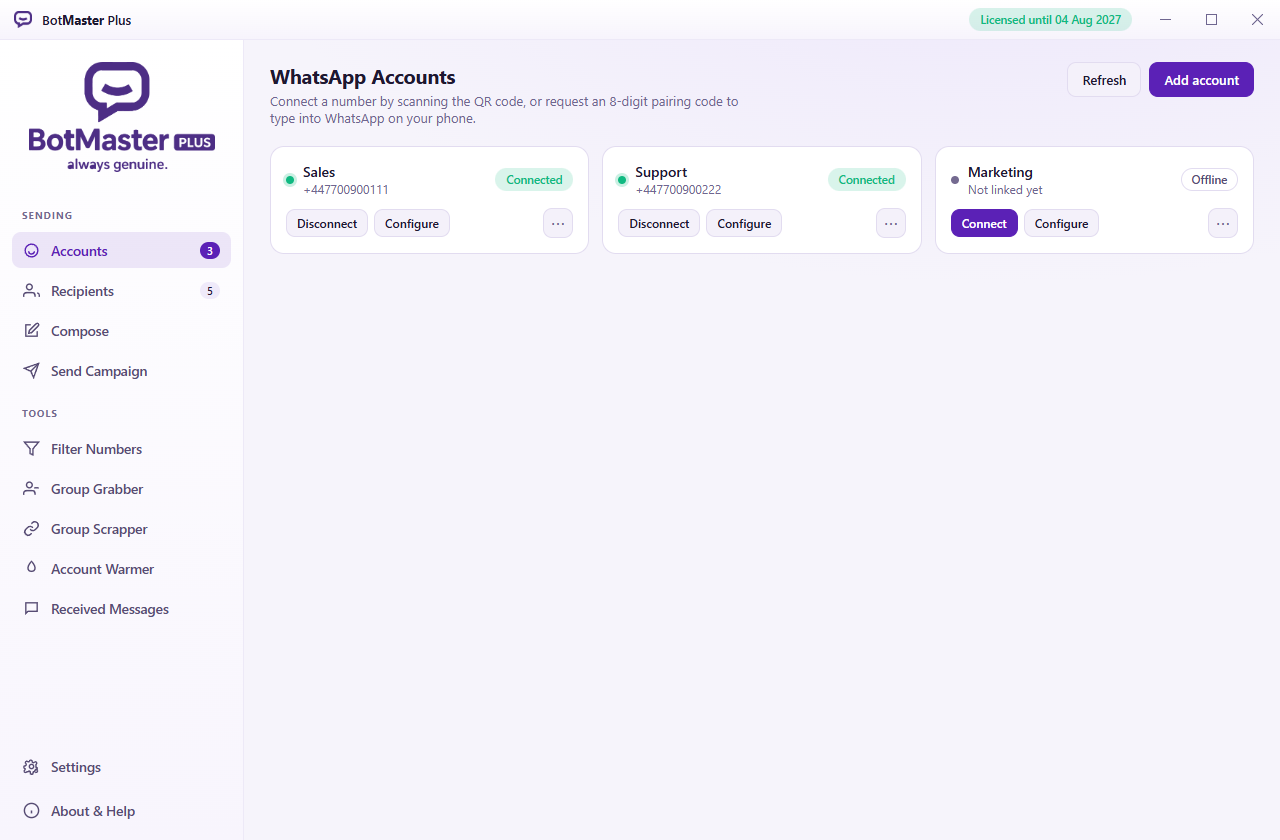
Linking a number
Add account, give it a name, then Connect. A QR code appears — on your phone open WhatsApp → Settings → Linked devices → Link a device, and scan it. If scanning is awkward, choose Use a pairing code instead and type the 8-digit code into your phone.
The code refreshes by itself while the window is open. Leave the account connected for a while after linking: contacts and groups arrive gradually through WhatsApp's own sync, not all at once.
Configure
| Setting | What it does |
|---|---|
| Proxy | Routes this account through your own proxy. Applies next time it connects. |
| Auto reply | Answers incoming messages — see section 10. |
| Save incoming numbers | Appends every new sender to a text file. |
| Card colour | Cosmetic, for telling accounts apart at a glance. |
| WhatsApp session | Where this account's credentials live on disk. |
3. Recipients
Who a campaign goes to. Import a file, paste a list, or pull contacts and group members from a connected account.
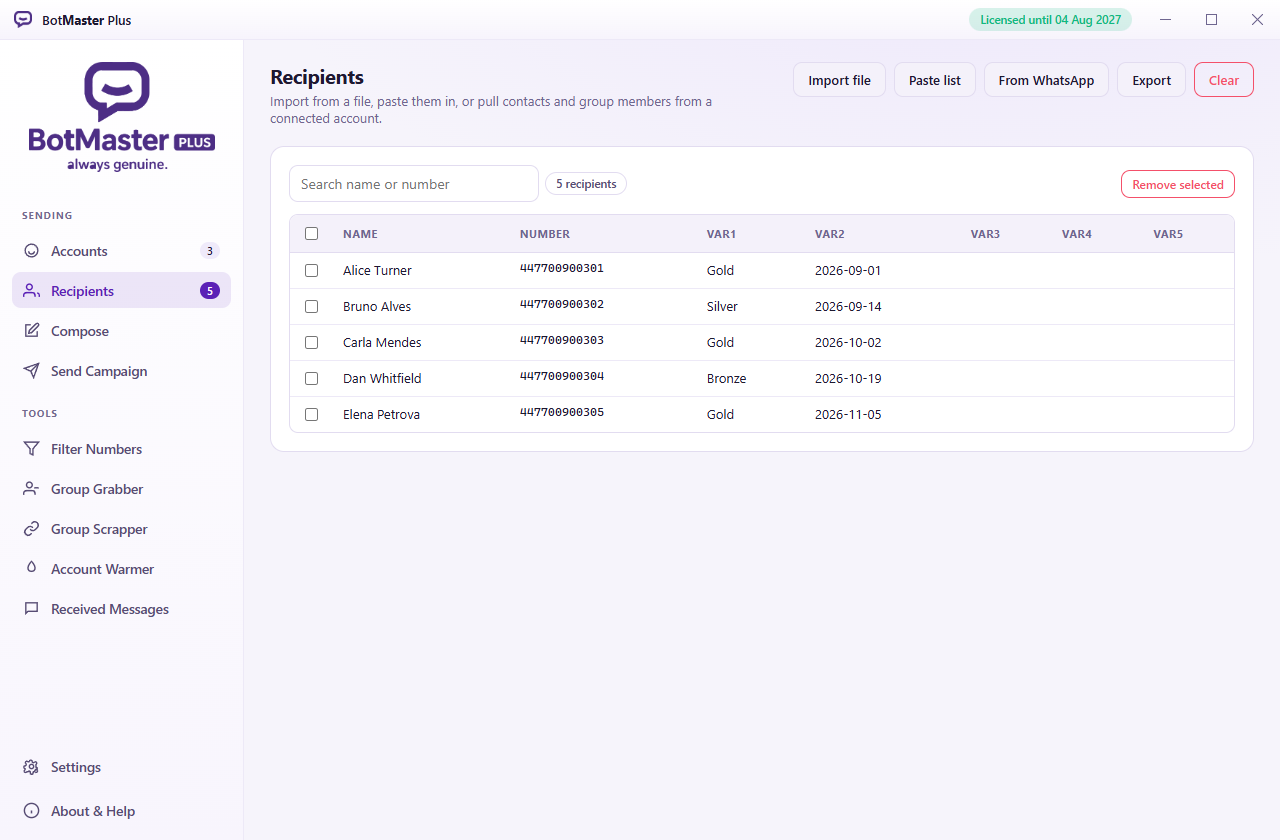
Numbers need the country code and nothing else — 447700900301,
not 07700 900301. Spaces, dashes and brackets are stripped for you;
a missing country code cannot be guessed.
Each row carries a name and up to five custom fields, which become the
placeholders [[var1]] to [[var5]] in your message.
Duplicates are removed on import.
4. Compose
What you send. The live preview on the right renders against your first recipient so you see what they will see.
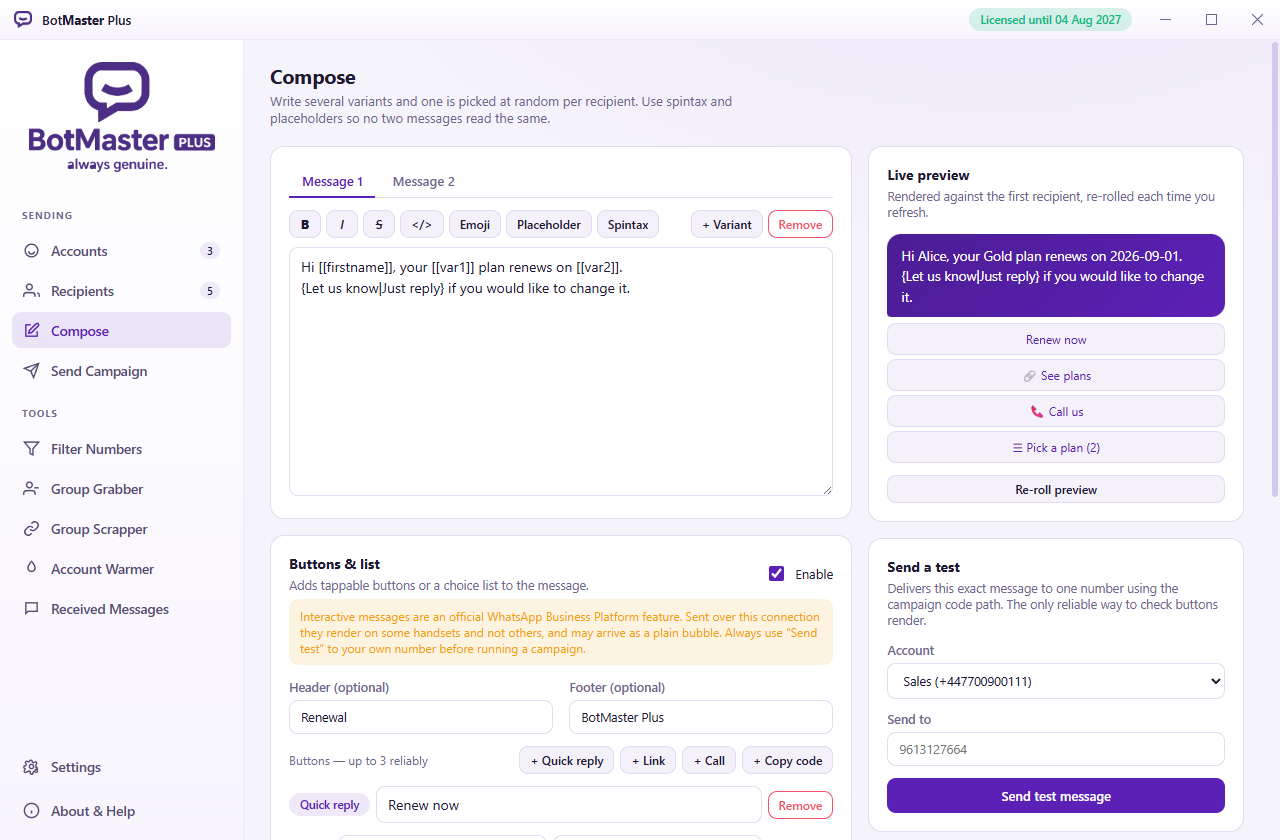
Variants, placeholders and spintax
Add several message variants and one is chosen at random per
recipient. Inside a message, spintax varies the wording again:
{Hello|Hi|Good morning} picks one each time.
Placeholders fill in each person's details:
| Placeholder | Becomes |
|---|---|
[[fullname]] | The whole name |
[[firstname]] / [[lastname]] | Part of the name |
[[var1]] … [[var5]] | Your custom columns |
Together these mean no two people receive an identical message, which is both more human and far less likely to be flagged.
Attachments
Images, video, voice notes, PDF, Word, Excel, PowerPoint and archives. Each is sent with the right type so the recipient sees a proper file card. Keep files under about 15 MB — WhatsApp rejects much larger ones.
Buttons and lists
Use Send a test — bottom right — to send the exact message to your own number through the same code path a campaign uses. It reports whether the message was delivered, which separates "it never arrived" from "it arrived but did not render".
5. Send Campaign
Where a campaign actually runs. Pick the accounts to send from, check the pacing, and start.
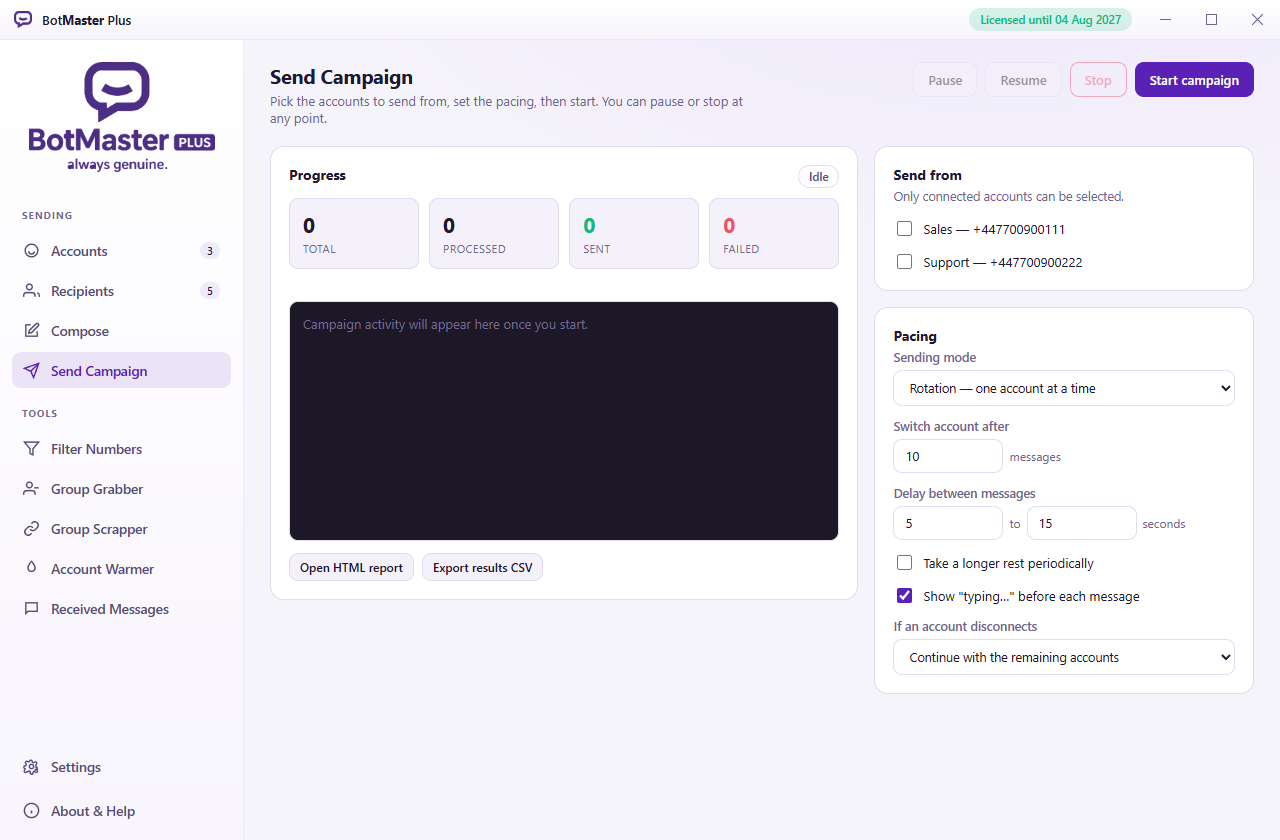
| Setting | Meaning |
|---|---|
| Rotation | Accounts take turns, swapping every few messages. Spreads the load. |
| Simultaneous | All chosen accounts send at once. Faster, and far more conspicuous. |
| Delay min / max | Seconds between messages, chosen at random in that range. |
| Rest | A longer pause after every N messages. |
| If an account is banned | Carry on with the others, or stop everything. |
A report is written when the run finishes — an HTML summary and a CSV of every
recipient and result, in the Reports folder.
6. Filter Numbers
Checks which numbers actually have a WhatsApp account before you waste a campaign on them, and marks which are business accounts.
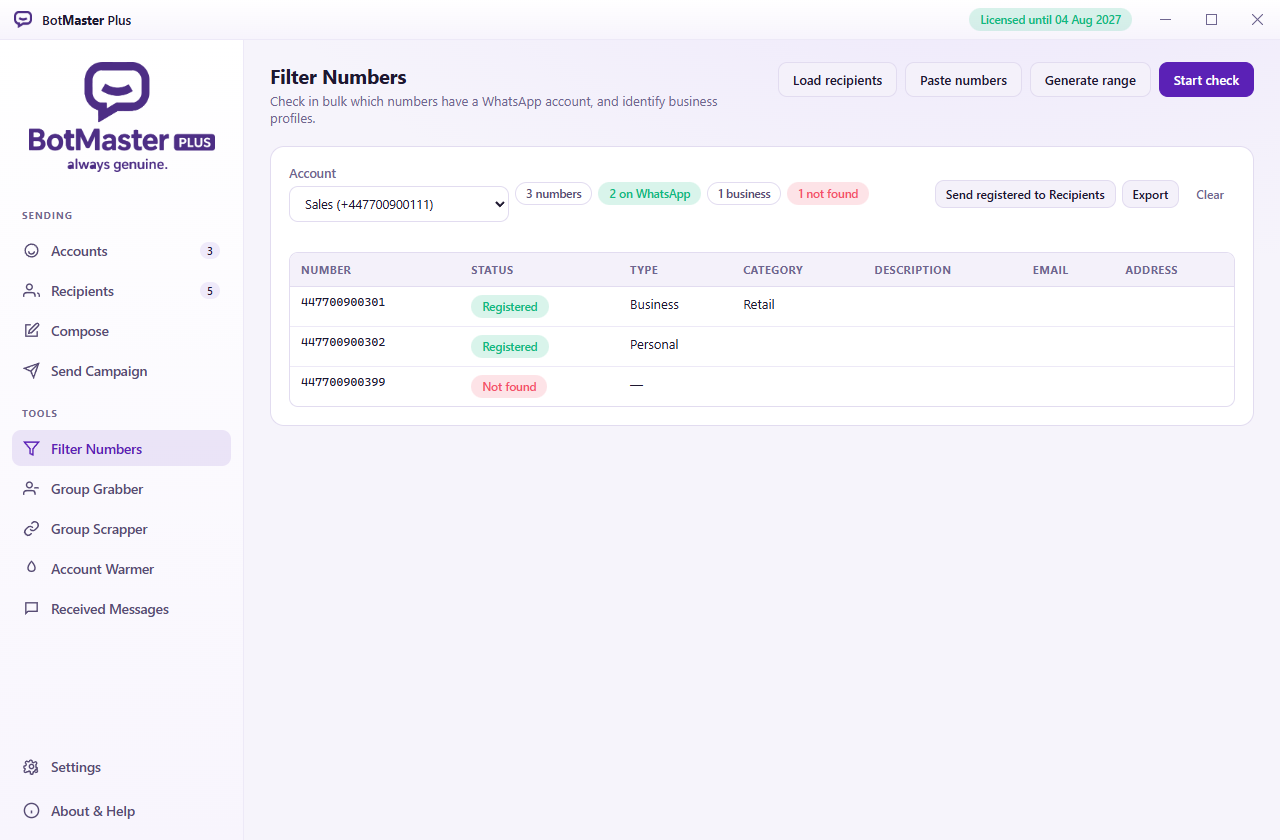
Paste or import numbers, choose a connected account, and start. Registered numbers can be sent straight to Recipients when it finishes.
7. Group Grabber
Lists the groups an account belongs to and pulls out the members.
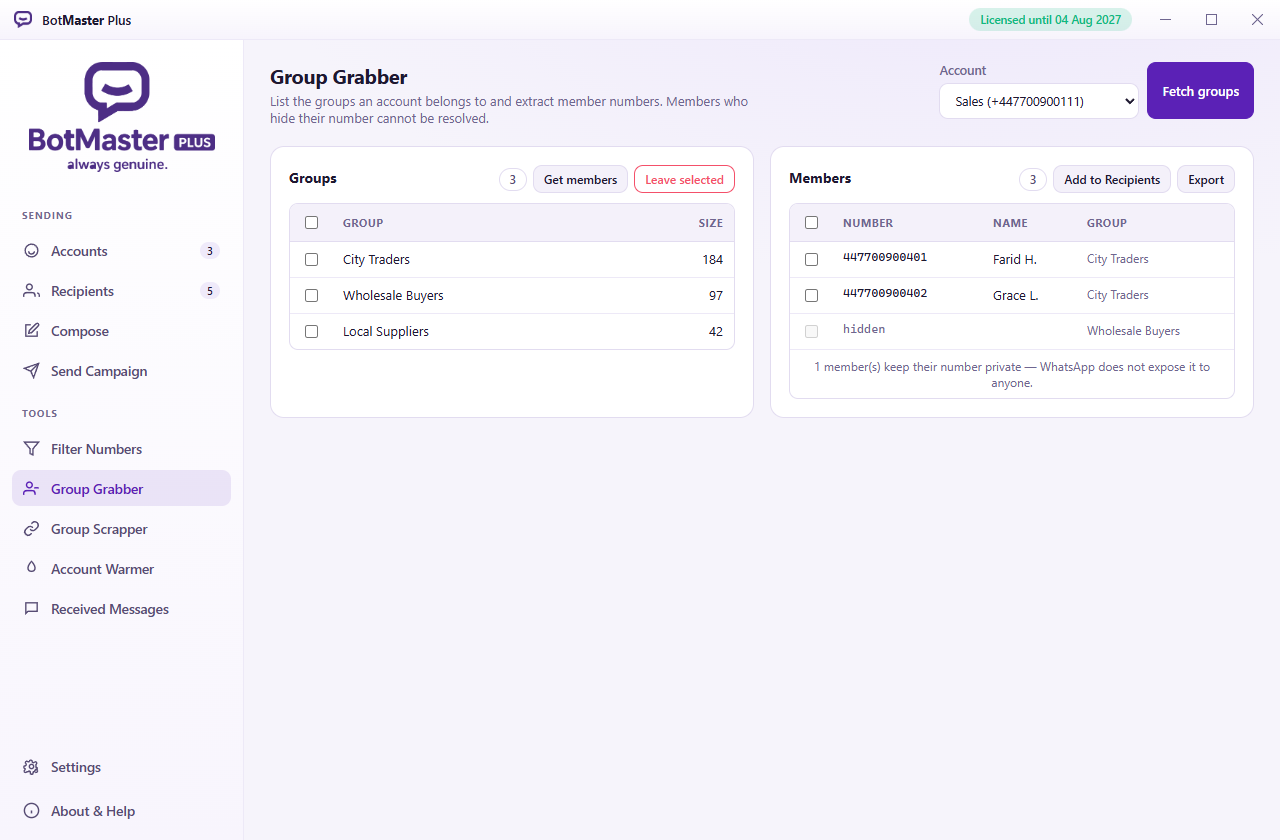
Fetch groups, tick the ones you want, then Get members. Members with visible numbers can be sent to Recipients or exported to CSV.
Members who keep their number private appear as hidden. Nothing can reveal them — WhatsApp does not send that number to anyone.
8. Group Scrapper
Collects chat.whatsapp.com invite links, checks what is behind
them, and can join.
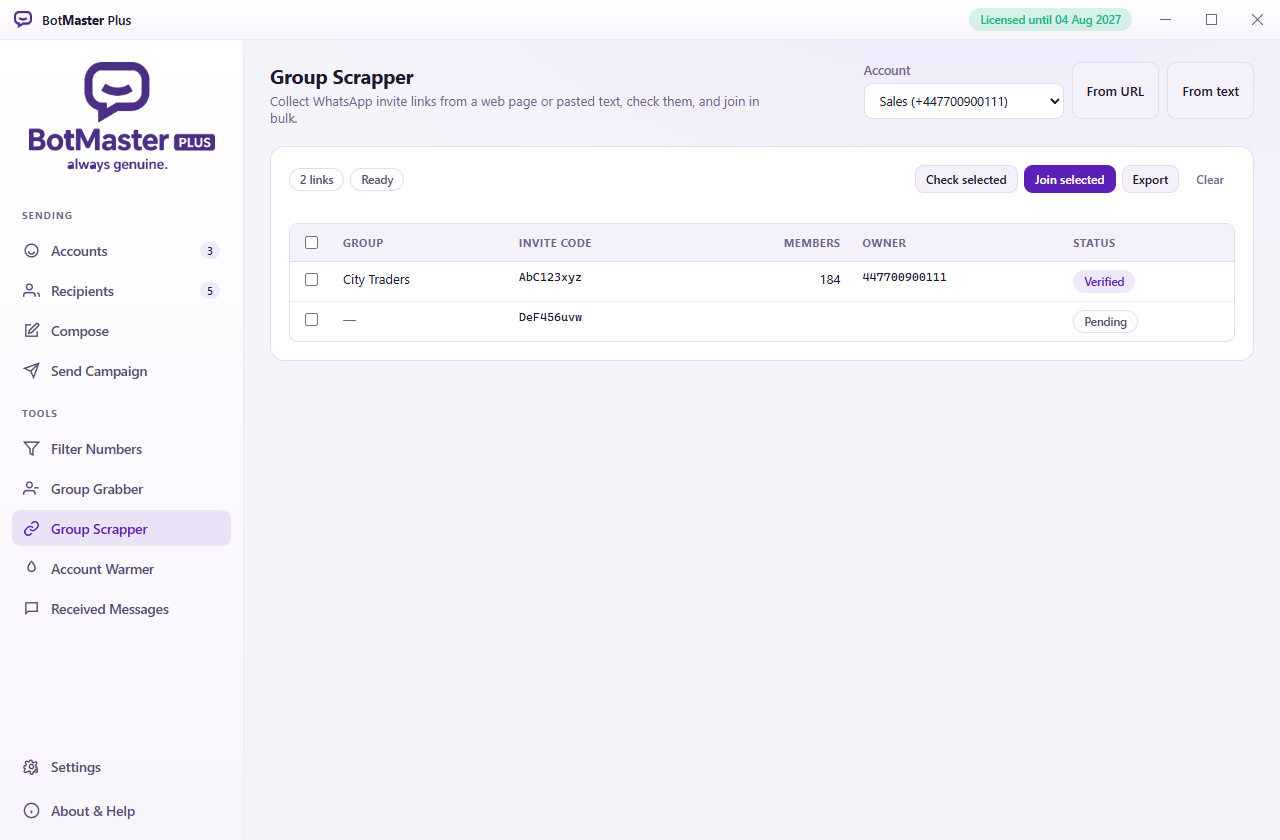
Import links from a web page or paste text containing them. Verify shows each group's name, size and owner without joining. Join enters the selected groups slowly and deliberately.
9. Account Warmer
Has your own accounts message each other at random intervals, so a new number has ordinary traffic behind it before any campaign.
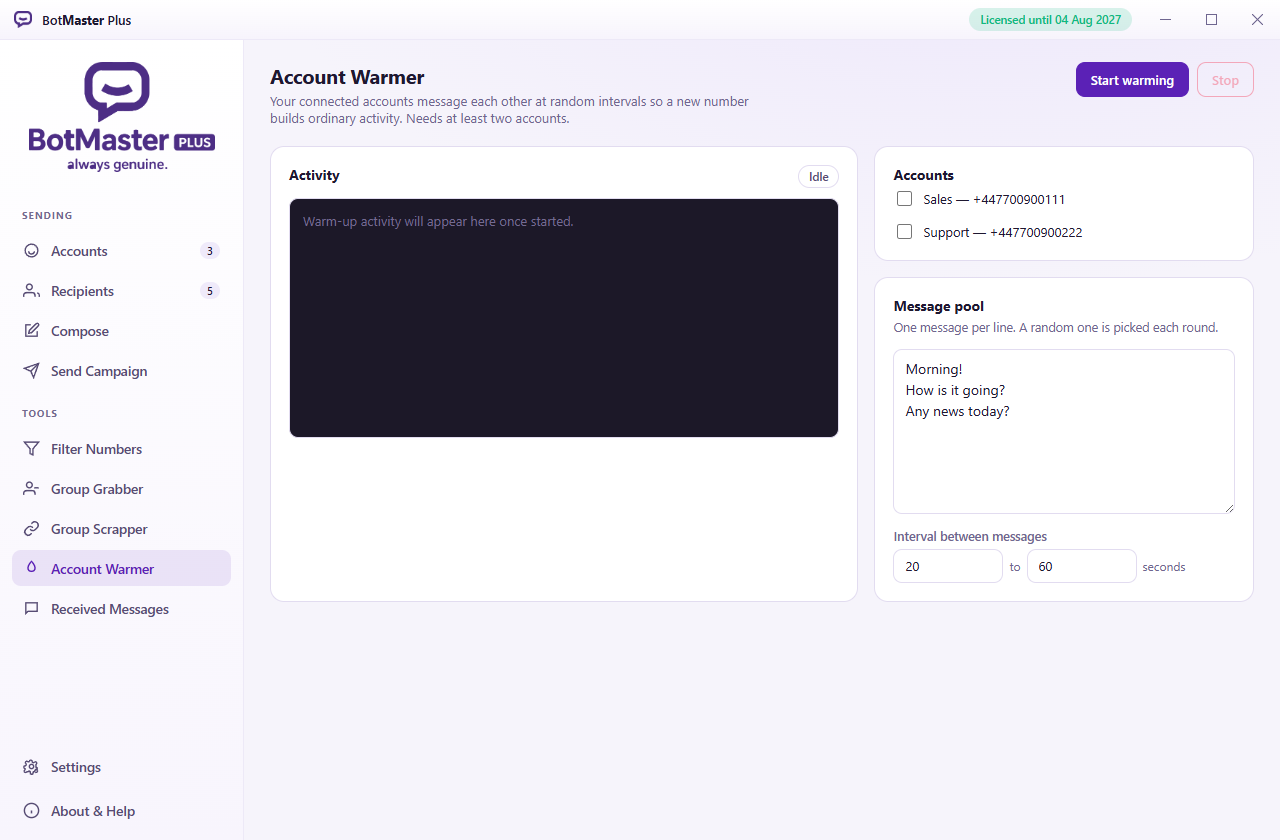
Select two or more connected accounts, add a handful of natural-sounding messages, and start. Leave it running for several days on a new number.
10. Received Messages and auto-reply
Everything sent to your connected accounts, and optional automatic replies.
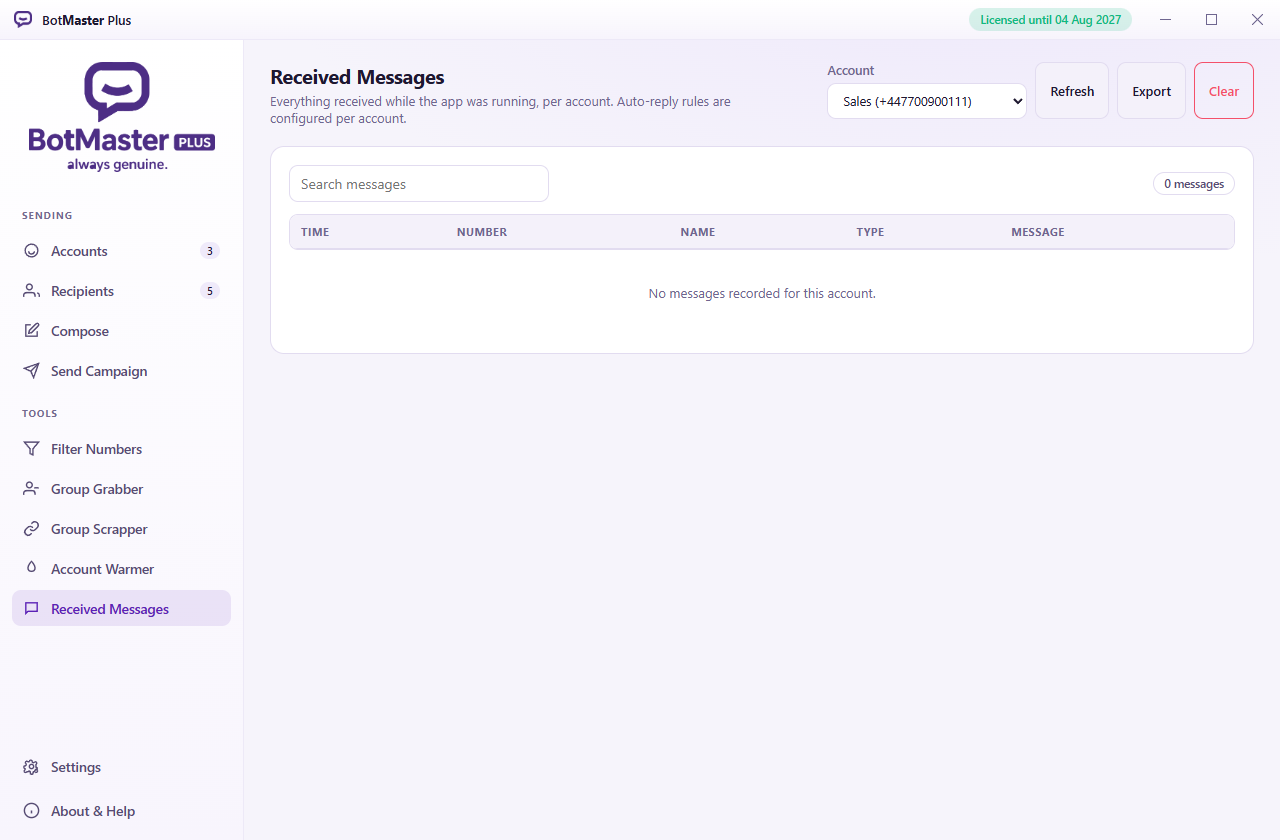
Auto-reply is set per account, in Accounts → Configure → Auto reply. Tick Reply automatically to incoming messages, then choose one of two modes — they are alternatives, never both at once:
| Mode | Behaviour |
|---|---|
| Keyword rules | Fixed answers. The first matching rule wins. A welcome message is sent once to each new sender when no rule matches. Rules and the welcome message can carry attachments. |
| AI assistant | Every message is answered by Claude, OpenAI, Gemini or DeepSeek using your own API key. Rules and the welcome message are not used. |
Your own accounts are never auto-replied to, so warming cannot trigger a reply loop between them.
11. Settings and licence
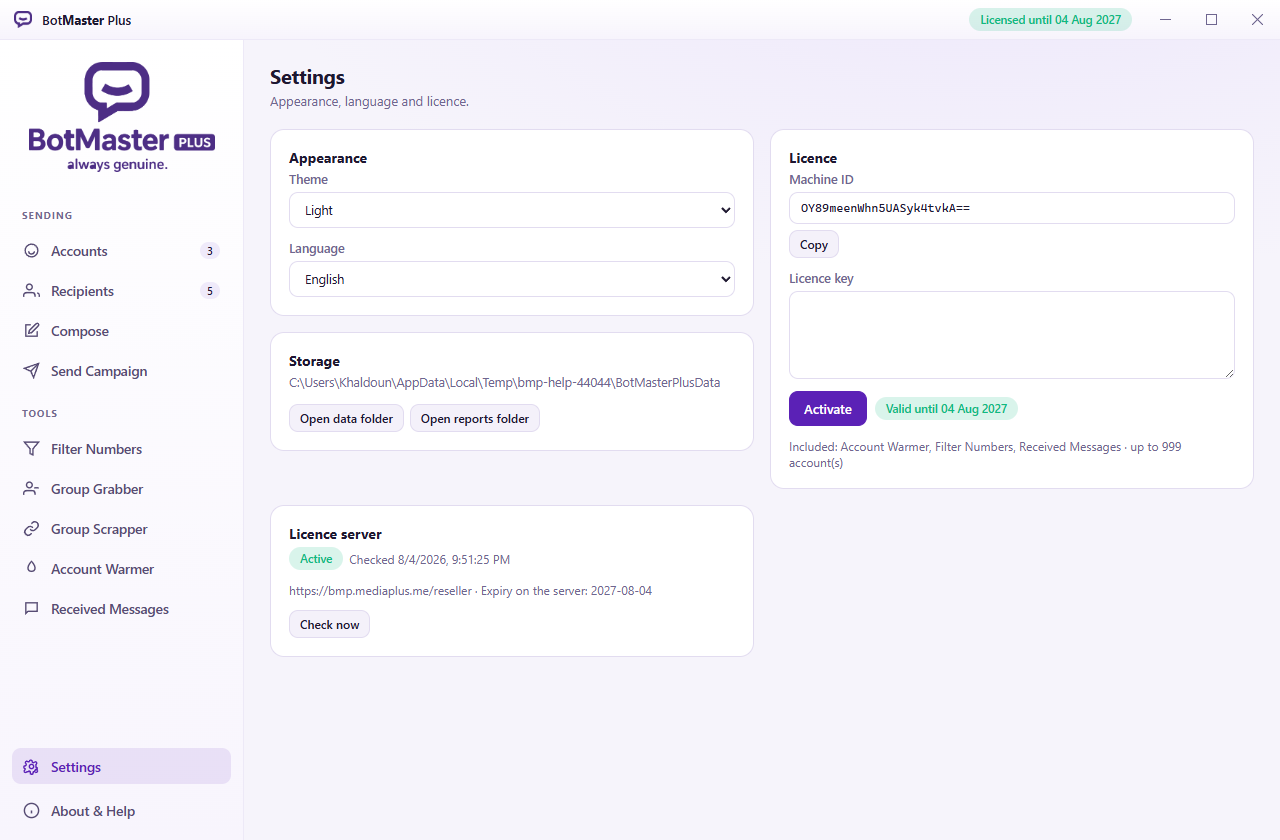
Theme and language (English, Spanish, Portuguese) change immediately. Storage opens the folder holding your accounts, messages and reports — worth backing up.
Activating
Copy your Machine ID and send it to your supplier. Paste the licence key you get back and press Activate. The key is tied to that one machine.
Licence server
The app checks your licence when it starts and every ten minutes after that. Check now does it immediately. If the server cannot be reached the app keeps working for a grace period, so an outage or a few days offline never stops you.
12. Avoiding bans
Nothing prevents a ban outright. These are the things that make one much less likely.
- Only message people who agreed to hear from you, and honour every opt-out the moment it arrives.
- Warm new numbers for several days before any campaign.
- Vary everything — use variants, spintax and placeholders so no two messages match.
- Keep delays long and irregular. 10–30 seconds beats 2.
- Build up slowly. Grow volume over weeks, not hours.
- Watch for replies. People blocking or reporting you is the strongest ban signal of all.
- Never send to bought or scraped lists. They are the fastest way to be reported.
13. Troubleshooting
| Problem | What to do |
|---|---|
| The QR code never appears | Check the internet connection, and any proxy set on that account. Close the dialog and press Connect again. |
| An account says "Signed out" | The link was removed from the phone. Press Connect and a fresh QR code is issued automatically. |
| An account keeps reconnecting | Usually the network. If it persists, check whether auto-reply is on while the warmer is running. |
| Buttons arrive with no buttons | The handset did not render them. Switch Compose to Classic and send another test. |
| Groups are missing | Wait half a minute and press Fetch again. Results are merged. |
| Some members have no number | They keep it private. Nothing can recover it. |
| The licence is asked for again | The key is bound to one machine. Moving to a different PC or drive needs a new key — send your Machine ID. |
| Messages send but nobody replies | Check delivery ticks on your own phone first. Silence usually means the audience, not the software. |